Secure & GDPR-Compliant notes
Whether you write notes in a notebook on your desk, a Word document on your laptop, or on an email to yourself after a session. These are all common ways to take notes on the fly, but they’re also compliance risks. If a device is lost, a notebook is stolen, a file is accidentally shared, client notes can be exposed or lost entirely.
Counselling Buddy’s session notes are fully encrypted from the moment they leave your device, meaning only you can read them, they’re stored fully encrypted, without any information relating to the client, and they’re automatically backed up daily.
Write however you work
Some therapists write their notes after each session, some later on in the day. Whichever way you prefer, Counselling Buddy can accommodate for it.
You can use note templates to give you a consistent starting point, but you don’t have to. You can just as easily start from an empty document and write your notes from scratch.
You choose the file name and can store notes as a standalone file in your documents section, or link them to a specific client or session. When you link a note to a client, it can easily be retrieved from the files & notes section of their profile.
Prefer to work on notes using Microsoft Word or similar? That’s okay. You can just as easily work on session notes using your favourite app, then upload the file to Counselling Buddy to benefit from secure, encrypted storage and daily backups.
What happens to notes when a client leaves
When you finish working with a client, or pause sessions, we recommend that you archive their profile rather than deleting it.
When you archive a client all of their notes, session history, files and payment history (if applicable) remain securely stored and contained within their profile.
Archiving clients hides their profile from your client information manager, helping to reduce clutter (though you can still easily find it by clicking on the archived button, which will display all your archived client profiles).
If you have finished working with a client and want to delete their information, including session history and notes, you can delete the client profile. This will delete all information relating to them that you store with Counselling Buddy.
Before deleting any clients you should ensure that you are complying with data retention regulations set by your professional body, as well as the UK General Data Protection Regulations (GDPR).*
*Typically requiring that records are retained for 7 years
Your professional obligations, supported
Counselling Buddy’s session notes are built with the BACP Ethical Framework and ICO guidance in mind:
- Fully encrypted your notes are encrypted from the minute they leave your device
- Client identities are protected notes are stored fully encrypted, without any information on the relating client
- Only you can read your notes no-one, not even us, can read your notes
- GDPR-compliant handling, retention, and deletion
How it fits into the rest of the platform
- Client Management - access all notes for a client directly from their profile
- Appointment Management - notes are linked to the specific session they relate to
- Document Storage - for files and uploads that sit alongside your notes
- Security & Compliance - notes inherit the platform’s full encryption framework
Getting started
- Open a client profile and scroll down the to files and notes section
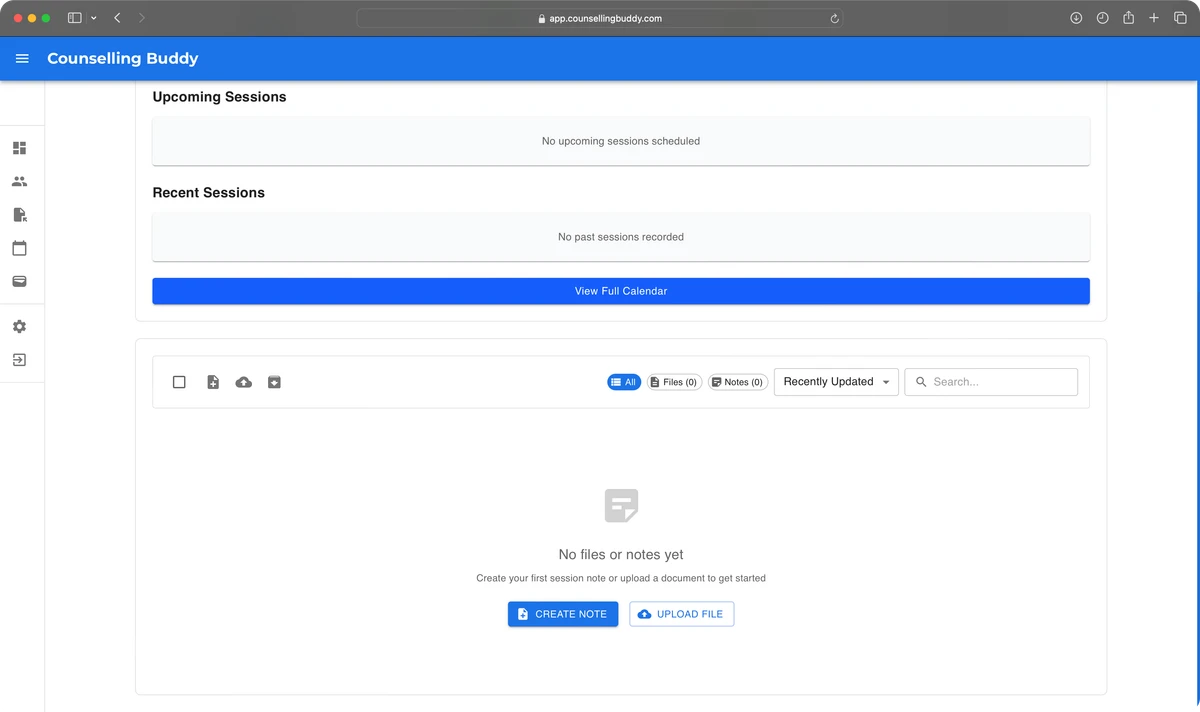
- Create a new note - if the client has no files or notes, you will see a big blue button inviting you to add a note. If not, you can use the button in the toolbar to open the new note popup. You can choose from one of your templates, or start from scratch with a blank note.
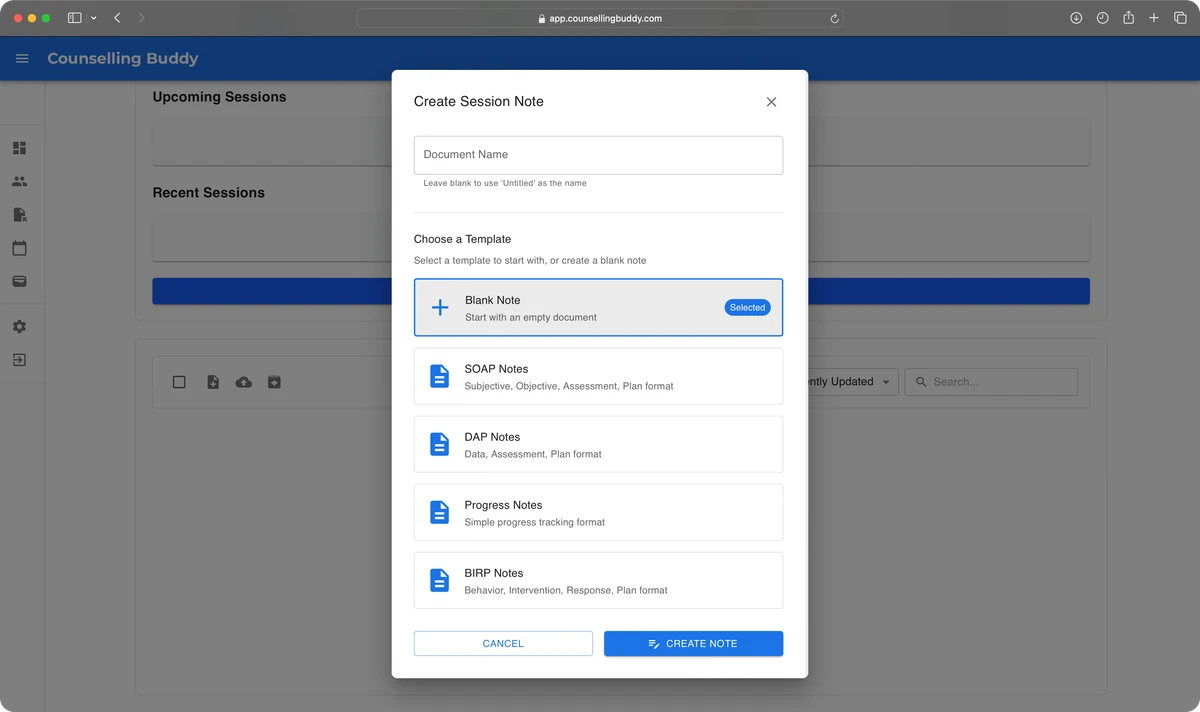
-
Write, save, and come back - periodic auto-save helps to prevent losing any of your work. There is also a save status indicator on the top right of the page, letting you know whether your changes have been saved. If they haven’t saving them is as simple as a single click of the save button in the top right corner of the page.
-
Export to PDF whenever you need a print ready copy of your notes, or if you would like an offline copy.